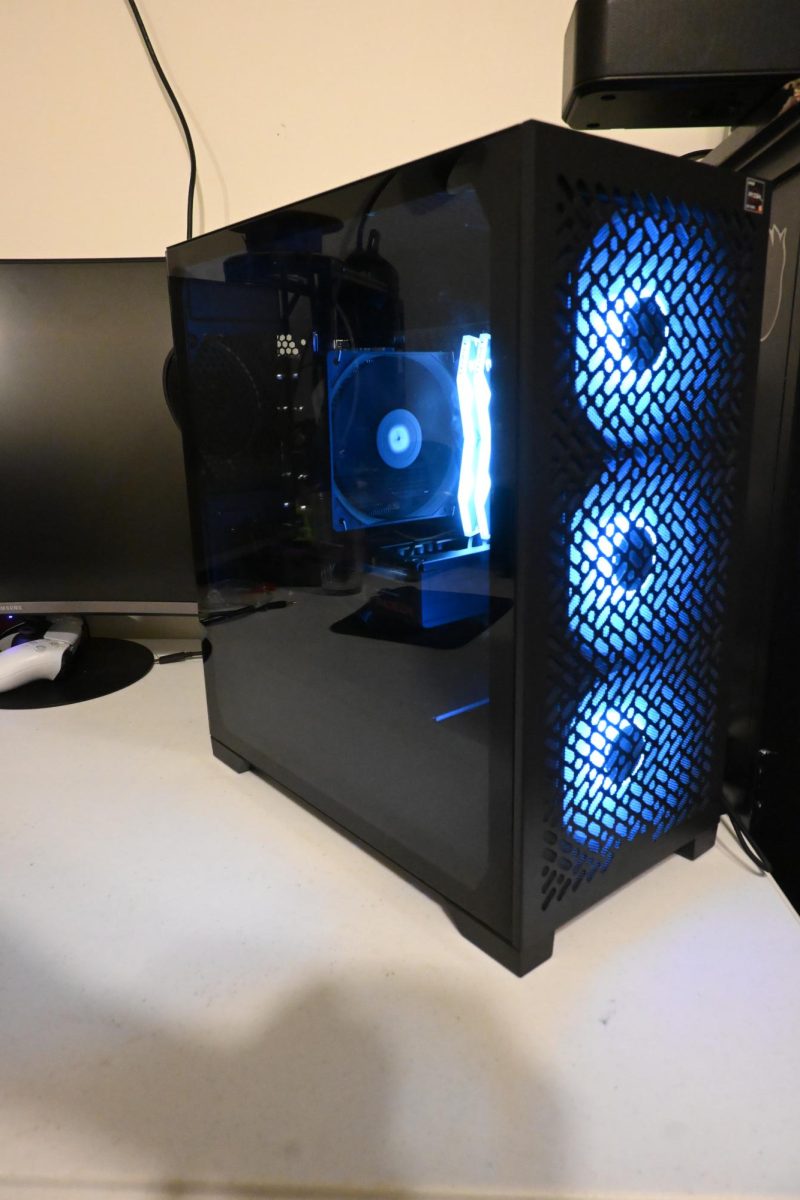
Desktop computers have been available since the 1970’s. Their popularity is growing substantially as gaming and more advanced systems come to light.
Computers themselves have changed through the years. Today, computers are made from a selection of modular components that usually can be interchanged; however some Original Equipment Manufacture (OEM) parts often use proprietary sizes, interfaces, or designs that require high prices to be bought from the original manufacturer.
Before the bulk of the story begins, it will be mentioned this is not a full guide in its entirety. However, it will include valuable shopping and knowledge needed to build a computer. But the end will include sources of full building guides.
The main components to a modern desktop are the big eight: the Central Processing Unit (CPU), Random Access Memory (RAM), Power Supply Unit (PSU), Motherboard, CPU cooler, case, and storage, and the Graphics Processing Unit (GPU) which is optional unless heavy rendering tasks like gaming or modeling are being done. Each one of these components is required for a computer to function properly and efficiently.
When building a computer, the first thing that you must take into account is its purpose. Every computer can try to do any task, but for it to function well in any way the part selection must match the task being done.
Another component to take into account is the price. With RAM shortages getting worse, picking your parts strategically and optimally can save you hundreds, if not thousands, of dollars.
Prebuilt computer manufacturers do exist, but they are often more expensive, contain proprietary parts, and might have poor quality control, leading to more issues. Building your own computer will also provide important skills that could be helpful later should something break.
The first step in the process of building a computer is picking the parts. Which starts with what the computer will be used for. Each component to a computer has its own purpose and connecting hardware. This can make things confusing, especially when it comes to how they interact with each other. Plenty of research is needed to make sure everything will work together. For a ground rule, check that the CPU socket matches the Motherboard, and the RAM generation also matches. DDR4 and DDR5 are the main two generations.
The case must also match the Motherboard size, which comes in three main standardized form factors limited to a specific size and layout ATX, Mirco-ATX, and ITX are those sizes. The easiest way to tell them apart is their size ATX being the largest and ITX the smallest.
Picking your components by purpose is key and will save you money by narrowing the search. For your CPU, it’s important to watch the cores and threads. Cores are the individual processing units inside the CPU. Each one has a clock speed which determines how fast it can process and compute information.
Next is the threads, which is just how many problems or actions each CPU core can do at once. For general browsing, get a two to four core CPU with four to eight threads on a newer CPU platform, and as the tasks get more demanding, these numbers need to increase. For gaming, look for six to eight cores. For engineering tasks, like computer assisted design and 3D rendering, use an 8 to 16 core CPU. Usually the threads follow the performance increase, but keep those numbers in mind for your task at hand.
With your CPU, you need a cooler. CPUs produce large amounts of heat when they perform tasks, so they need coolers to remove this heat. The easiest way to find out what cooler you need is simply look at your CPU’s Thermal Design Power (TDP). Usually this can be found on the cooler manufacturers website and it is measured in watts.
If you cannot find the TDP to your CPU, take its operating wattage and add a decent buffer, usually 25 to 50 watts in TDP. Going cheap here is okay, especially with air coolers, with a tested design they are simple and can be as low as 17 dollars for a decent one.
Most coolers come with thermal paste; however, some do not. Thermal paste is a metallic compound placed between the CPU and the CPU cooler to ensure coverage and thermal transfer between the two. If your cooler does not come with thermal paste, Thermal Grizzly sells their Kryonaut paste for less than 10 dollars. Next is your Motherboard. Many Motherboard brands and styles exist and this can make it difficult to find the one you need. First, pick a Motherboard that fits your CPU socket like Intel’s LGA or AMD’s AM5. Next is WiFi, whether built in WiFi or wired LAN only. Lastly is the rear Input/Output, which is the video ports, USB connections, and other forms or ports like audio and ethernet that will be on the back of the computer when it is built.
RAM is simple, base the amount of gigabytes of RAM you need on the tasks the computer will be doing, and get the generation that matches the Motherboard. RAM slots are the quantity of physical RAM sticks able to be slotted into the Motherboard. They need to match or be less than what the Motherboard has. Browsing can be done on as low as four gigabytes of RAM. While, for modern gaming, most say 16 gigabytes is the minimum. For engineering tasks, it is recommended to get anywhere from 32 to 128 gigabytes, depending on the size of the files being used or edited.
The case is the simplest. The case is the shell of the computer, inside is where the components go. Cases are a matter of aesthetics and personal taste. The only thing to keep in mind is choosing the case that matches the Motherboard and PSU size and that the case supports your GPU length and CPU cooler height; otherwise it’s up to personal preference. Do note, some cases come with fans, and some do not. Keep that in mind because it could affect the price.
The GPU is the poster child, graphic cards are the backbone of complex tasks and processing. Nvidia RTX series, and AMD Radeon Cards are the main two, each having their pros and cons. Most budget leaning groups go for AMD cards for pure horsepower in processing and budget minded pricing, while those looking to squeeze every ounce of performance out of their machine, go to Nvidia. It is recommended to research this subject thoroughly. These cards range from a couple hundred dollars to several thousand. Intel also produces a graphics card, the B580. It doesn’t perform as well as some of the others but is the current king of budget minded users tied with AMD cards.
Next is storage, the most common type today are M.2 NVME drives, hard drives are another option, but are slower and use mechanical parts; however being cheaper, they are a good choice for storing large amounts of data without being overly expensive. Choose the NVME for better download and load speeds, as well as overall user experience, and the hard drives for large storage, and cheaper costs.
Finally, the last component, the PSU. PSU’s are rated in their efficiency in turning Alternating Current to Direct Current power. Most PSU’s use an efficiency rating system starting at 80 plus and assigning a metal to the levels. The best being 80 plus Titanium. A general rule of thumb for choosing a PSU’s wattage, is to add the CPU and GPU’s wattage then double it leaving room for upgrading in the future, and preventing extra stress on the PSU.
Now, the parts are together and the build can begin. It is recommended to anyone building for the first time to watch an in-depth tutorial and read the manuals. The manuals of most PC parts will be critical to their installation and will save troubles later.
Firstly, ensure that all components arrived undamaged and in good visual condition. Then, unwrap and plug in the PSU and flip the switch to the “I” position. When you move, touch your hand to the grounded unit to prevent static buildup and prevent potential damage. Next, unbox the Motherboard, and place the Motherboard on its box after removing all the other parts from the box.
After the prebuild, get the RAM, storage, CPU, and CPU cooler out. Follow the instructions provided, or found online, and install these first. Each Motherboard, CPU, and CPU cooler combo is different in their installation, refer to the OEM instructions for help, especially with the cooler.
One last thing to keep in mind is the CPU latch on the Motherboard requires a lot more force to close than it would seem, and do not remove the plastic cover on the Motherboard. It will come out when the CPU is installed. Make sure to keep the cover after the CPU is installed as some companies won’t let you return the Motherboard without it.
RAM is simple, just make sure if you have two RAM sticks that they are in dual channel, which is usually printed on the Motherboard, or slots A2 and B2. This is usually called Motherboard prep, refer to a guided video for the entire process.
Now that the Motherboard is prepped, install it into the case, which should have come with mounting screws and a diagram on the instructions. After the Motherboard is installed, connect the case’s Input/output wire to the Motherboard and prepare the PSU wires needed to wire the board up, and the GPU if you have one. Reference the wiring to the board and the slots before using the case instructions to install the PSU.
The final steps, wire management. Simply make sure the wires fit in the case without bulging the side panels, unless you personally want to make the wires look extra nice. Then, install the GPU, plug it in, and begin the first system startup. Once you finish the first boot, and install an operating system, refer to Microsoft’s website for Windows, and make sure to install the proper drivers, check the manufacture websites for the CPU, GPU, and Motherboard. Then you’re done.
Below are some sources of very helpful PC building information:
- Linus Tech Tips first-person view of building your first computer, every single step and process, and an accompanying BIOS, and operating instal guide:
Gamers Nexus Home page includes helpful benchmarks for hardware and reviews for various components. A reputable source of journalism in the computing market and environment:
- Pcpartpicker.com is an extremely helpful site that automatically displays pricing, compatible parts, specs, and other info.
- Refer to the r/Buildapc subreddit for building assistance if you run into an issue.